

Key Takeaways
- Back up your old phone before doing anything else — this is the single most important step.
- Both iPhone and Android have built-in transfer tools that handle contacts, photos, and apps automatically.
- App logins and passwords won't always transfer — plan to re-enter credentials for key accounts.
- Deauthorize your old phone from sensitive apps like banking and two-factor authentication before switching.
- A full transfer typically takes 30 to 90 minutes depending on how much data you have.
What you will need
Why Phone Transfers Go Wrong — and How to Avoid It
Most people lose data during a phone switch not because the transfer tools are unreliable, but because they skip preparation. The three most common failure points are: no recent backup, losing access to two-factor authentication codes, and forgetting app passwords that were saved on the old device.
The good news is that both Apple's iOS ecosystem and Google's Android ecosystem have mature, guided transfer systems that handle the heavy lifting automatically — contacts, photos, calendars, and most app data can move with minimal effort if you start with a complete backup. For anyone who is newer to smartphones, our beginner's orientation to smartphones covers cloud accounts and app stores in plain terms before you dive in.
Back Up Before You Do Anything Else
Do not start any transfer process until you have a fresh backup of your old phone. If something goes wrong mid-transfer — a dead battery, a Wi-Fi dropout, an unexpected reset — you could lose data permanently. Both iCloud (for iPhones) and Google One (for Android) offer free backup options that take only a few minutes to run.
What transfer tools cannot do automatically: move paid apps between iOS and Android (you'll need to repurchase on the new platform), carry over in-app saved data for some games, or migrate authenticator app codes without a manual step. Plan for these gaps ahead of time and the overall process stays smooth.
What You'll Need Before You Start
What you will need
Wi-Fi network
Required for cloud backups and for most built-in transfer tools to move data wirelessly.
USB transfer cable or adapter
Enables a direct wired connection between phones for faster transfers, especially useful for large photo libraries.
iCloud or Google account credentials
Your account login is needed to restore a backup and re-sync contacts, calendars, and app data.
Power charger for both phones
Keeps both devices powered throughout the transfer so the process isn't interrupted.
SIM card tool or small paperclip
Used to remove your SIM card from your old phone and insert it into your new device.
Step-by-Step: Moving Everything to Your New Phone
Back up your old phone completely
On an iPhone: Go to Settings → tap your name → iCloud → iCloud Backup → Back Up Now. Wait until it says the backup is complete with a timestamp.
On an Android phone: Go to Settings → System → Backup → toggle on Back up to Google Drive → tap Back up now. The exact menu labels vary slightly by manufacturer.
After the backup finishes, note the date and time shown — you want to confirm the new phone restores from this latest version.
Handle two-factor authentication apps first
Before anything else, open any authenticator app on your old phone and transfer each account to your new device. Most authenticator apps include a built-in account transfer or export option in their settings menu. Follow the in-app instructions to move each account — this usually involves scanning a QR code displayed on the old phone with the new one.
Once you confirm the new phone generates valid login codes for your accounts, you can safely proceed.
Use the built-in transfer tool on your new phone
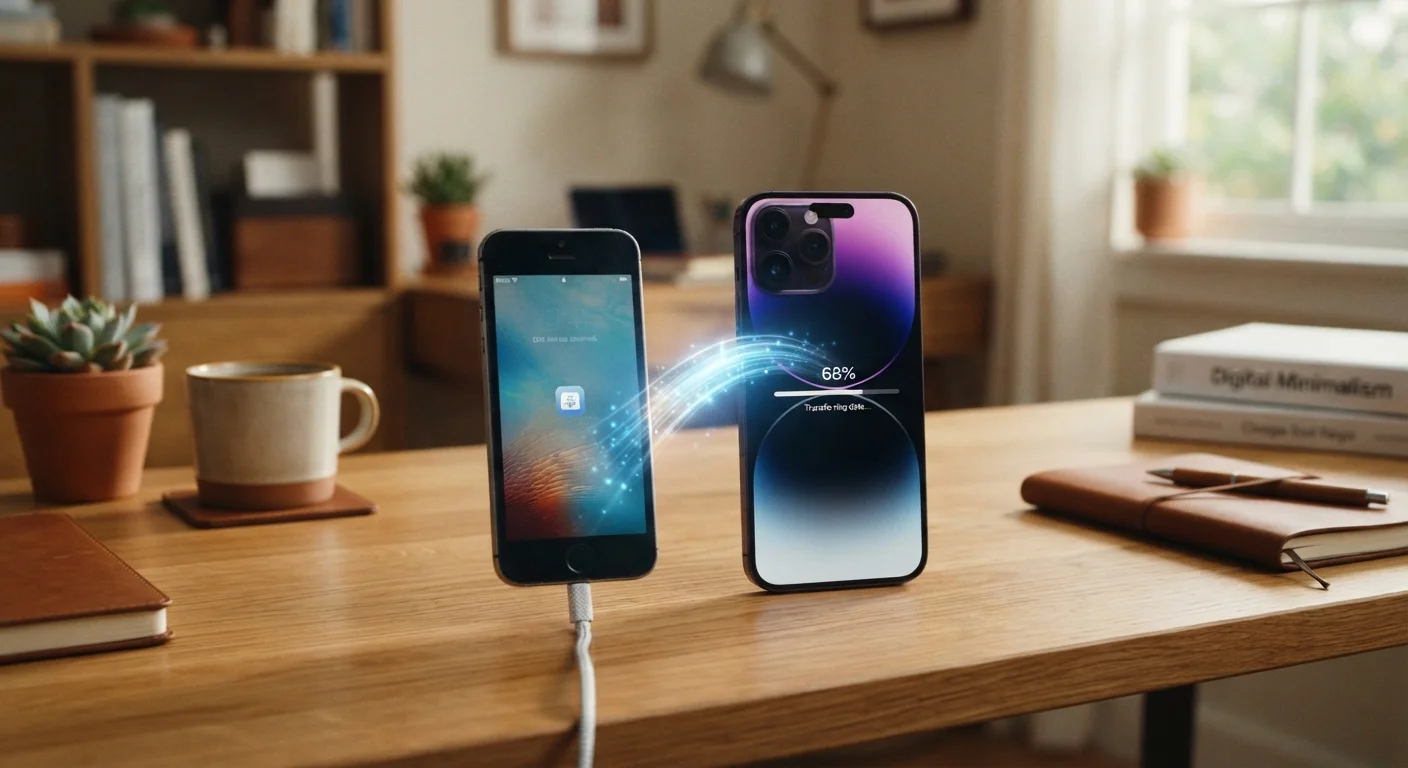
iPhone to iPhone: When you power on a new iPhone, iOS will prompt you to use Quick Start. Hold your old iPhone near the new one — they'll connect automatically. Follow the on-screen prompts to transfer settings, apps, and data directly. You can also choose to restore from your iCloud backup instead.
Android to Android: During the Android setup wizard, choose Copy apps and data from your old device. You can transfer via a cable (faster) or Wi-Fi. The setup wizard walks you through each step.
Switching platforms (iPhone to Android or vice versa): Use Move to iOS (an app for Android-to-iPhone) or follow Google's guided transfer steps for iPhone-to-Android. These tools handle contacts, photos, and some app data, though they can't transfer paid apps across ecosystems.
Move your SIM card
Your SIM card is the small chip that connects your phone to your cellular network. Use the SIM tool (or a straightened paperclip) to eject the tray from your old phone. Transfer the SIM to your new phone's tray, making sure it sits flat and secure before pushing the tray back in.
If your new phone uses a different SIM size, or if it's an eSIM-only model, contact your carrier directly — they can transfer your number to a new SIM or activate the eSIM remotely, usually in minutes.
Re-log into apps and verify key data
Once your new phone is set up, work through your most important apps: email, banking, social media, and streaming services. Most apps will ask you to sign in again as a security measure — this is normal and expected.
Check that your contacts, text message history, and photos all appear correctly. If anything is missing, you can re-run a restore from your backup through your phone's settings.
Deauthorize and safely store your old phone
Once you're satisfied everything transferred correctly, sign your old phone out of your Apple ID or Google account. On iPhone: Settings → your name → Sign Out. On Android: Settings → Accounts → select your Google account → Remove account.
If you plan to sell or trade in your old phone, perform a full factory reset (Settings → General → Transfer or Reset iPhone → Erase All Content on iOS; or Settings → System → Reset → Factory reset on Android). This wipes all your personal data from the device.
Keep Both Phones Plugged In During Transfer
A large data transfer can drain your battery faster than expected. Plug both phones into power before you start and keep them connected throughout the entire process. This is especially important if you have several gigabytes of photos and videos to move.
Two-Factor Authentication Can Lock You Out
If you use an authenticator app (like Google Authenticator or Microsoft Authenticator) for two-factor login codes, do not wipe your old phone until you have transferred or re-linked those accounts on your new device. Losing access to your authenticator app before completing account migration can lock you out of email, banking, or work accounts.
After the Transfer: A Quick Checklist
Before you declare success, run through these checks to make sure nothing was left behind:
- Contacts: Search for a few names you know — confirm they appear with correct numbers.
- Photos: Scroll back a few months in your camera roll to verify older images transferred.
- Email: Open your email app and confirm your inbox loads and you can send a test message.
- Banking and financial apps: Re-log in and re-enable biometric login (Face ID / fingerprint) for each.
- Two-factor codes: Test a login on a service that requires a verification code to confirm your authenticator is working.
- Voicemail: Call your own number to verify visual voicemail is set up on the new device.
If you run into gaps — a missing photo album, a missing chat history — check whether that data was included in your original backup before you erase the old phone. For a deeper look at protecting your photos and contacts during a switch, see our related guide on transferring photos and contacts safely. And if this is your first time setting up a smartphone entirely from scratch, the first smartphone setup guide walks through essential settings and safety steps in detail.