

Key Takeaways
- A connected home simply means devices in your house can communicate with each other or be controlled remotely.
- Smart plugs, lighting, and thermostats are the easiest entry points for beginners.
- Most devices work over your existing Wi-Fi — no extra wiring required.
- Picking one ecosystem (like Google Home or Amazon Alexa) keeps setup simpler.
- Basic security habits — strong passwords, regular updates — protect your home network.
Start here
What 'Connected Home' Actually Means
Next
The Devices Worth Starting With
Then
How These Devices Talk to Each Other
When you're ready
Setting Up Without Getting Overwhelmed
Before you buy
Privacy and Security Basics
What 'Connected Home' Actually Means
A connected home — sometimes called a smart home — is simply a household where some devices can be controlled remotely, automated on a schedule, or made to respond to each other. Your lights might turn off when you leave, or your thermostat might lower the temperature an hour before you go to sleep. None of this requires an engineering background.
The foundation is almost always a home Wi-Fi network. If your house already has internet service and a router, you already have the infrastructure most smart devices need. For a deeper look at what's happening under the hood, our plain-language smart home overview covers networks, platforms, and privacy in full.
Router
The box provided by your internet service that creates your home Wi-Fi network. Smart devices connect to it wirelessly, the same way your phone or laptop does.
Platform / Ecosystem
A software system — like Google Home, Amazon Alexa, or Apple HomeKit — that lets you control multiple smart devices from a single app and makes devices from different brands work together.
Firmware
The built-in software that runs a smart device. Manufacturers release firmware updates to fix bugs and security issues, similar to software updates on a phone.
Smart Hub
A dedicated device that acts as a translator between your router and smart devices that don't connect directly to Wi-Fi. Not required for most beginner setups.
Mesh Wi-Fi
A system using multiple access points placed around the home to provide even, reliable Wi-Fi coverage in every room — useful when a single router leaves dead spots.
Automation
A rule you set up so devices act on their own — for example, turning the porch light on at sunset every day — without you having to do it manually.
The Devices Worth Starting With
The smart home market is large and can feel daunting, but a handful of device categories consistently stand out as low-effort, high-payoff starting points.
- Smart plugs — Plug one into a standard outlet and plug any lamp or appliance into it. You can then turn that outlet on or off from an app or by voice. No rewiring, no electrician.
- Smart lighting — Bulbs that replace standard ones and can dim, change color temperature, or switch on a schedule. They screw into existing fixtures.
- Smart thermostats — Replace your current thermostat and learn your schedule over time, adjusting temperature automatically to save energy without manual fiddling.
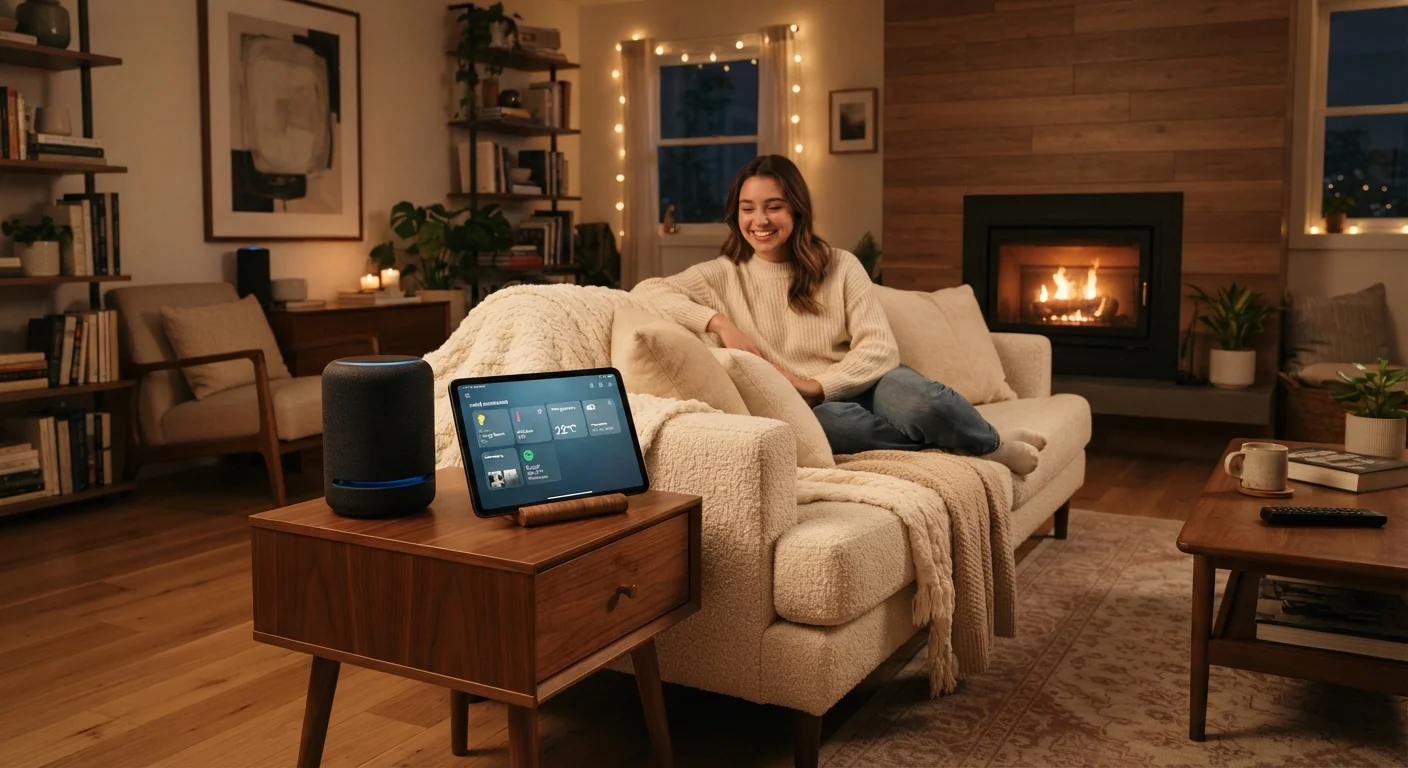
- Smart speakers — Countertop devices with built-in voice assistants that can control other smart devices, answer questions, set timers, and play music.
For a side-by-side look at how these three entry points compare on ease of setup and real-world payoff, see our guide to smart thermostats, plugs, and lighting.
Start With One Inexpensive Device
A smart plug costing around fifteen to thirty dollars is a low-stakes way to learn how apps, voice control, and schedules work. If you decide connected devices aren't for you, you've lost very little. If you love it, you have a solid foundation to build on.
How These Devices Talk to Each Other
Most beginner-friendly devices use your home Wi-Fi to communicate — the same network your phone and laptop already use. Some use shorter-range wireless standards called Zigbee or Z-Wave, which require a small hub device as a translator between them and your router. For a first setup, Wi-Fi devices are easier because they need no extra hardware.
A platform — such as Google Home, Amazon Alexa, or Apple HomeKit — acts as a central app that ties your devices together so you can control everything in one place. Most devices declare upfront which platforms they support; choosing one platform from the start and sticking with it avoids compatibility headaches later.
Compatibility Isn't Always Obvious on the Box
A device labeled 'Works with Alexa' may not work equally well with Google Home or Apple HomeKit. Before purchasing, check the manufacturer's website or app store listing to confirm the platform you plan to use is fully supported. This small step saves significant frustration during setup.
If your router is older or your Wi-Fi signal is weak in parts of your home, devices in those areas may behave unreliably. Getting a router up and running without calling tech support is a useful starting point before adding smart devices.
Setting Up Without Getting Overwhelmed
The most common mistake beginners make is buying several devices at once and trying to set everything up on the same afternoon. A much steadier approach:
- Pick one device. A smart plug is an ideal first choice — it's inexpensive, reversible, and teaches you how apps and voice control work without disrupting anything important.
- Get comfortable with the app. Spend a few days using it before adding anything else. Notice how schedules, automations, and remote control work.
- Add one more. Once the first device feels routine, add a second. Gradually building familiarity is far less frustrating than configuring six devices simultaneously.
Most device apps guide you through setup with step-by-step instructions. If a particular step asks for your Wi-Fi password, that's normal — the app needs it to connect the device to your network.
For a walkthrough of what happens from the moment you first plug a device in through daily use, our first plug-in to daily use guide walks through the full process.
Privacy and Security Basics
Connected devices collect data — at minimum, usage patterns — so a few basic habits matter before and after setup.
- Use a strong, unique Wi-Fi password. Anything on your network can theoretically be a path in for someone trying to access your data. A strong router password is your first line of defense.
- Keep firmware updated. Firmware is the software built into a device. Manufacturers release updates to fix security gaps; enabling automatic updates where possible means you're not relying on remembering to check.
- Review app permissions. When installing a device's app, notice what access it requests — microphone, location, contacts. Grant only what the device needs to function.
- Create a guest network. Many routers let you create a separate Wi-Fi network for smart devices, isolating them from your computers and phones. Check your router's settings or its manual for this option.
Don't Skip the Password Step
A device left on a router with a weak or default password is more exposed to unauthorized access. Before adding any smart device to your network, confirm your Wi-Fi uses a strong, unique password — not the one printed on the router's label. Changing that default is one of the simplest security steps you can take.
This article is for informational and educational purposes only. Product categories and compatibility details vary by manufacturer and may change over time. Always consult the documentation for any specific device you purchase.