

Key Takeaways
- Sign out of every account — including iCloud, Google, and payment apps — before handing off a device.
- A factory reset alone may not remove an Activation Lock; you must disable it first through your account settings.
- Always physically remove your SIM card before selling or trading in your phone.
- Back up your data before you wipe the device — once reset, recovery is not guaranteed.
- Check that the device boots cleanly to its setup screen before completing the handoff.
Summary
18 items · 20–45 minutes
Why This Checklist Matters More Than You Think
Selling or giving away an old phone feels simple — until you realize the previous owner's email, photos, or payment credentials are still sitting on the device. Personal data left on a phone doesn't disappear when ownership changes hands. Accounts stay signed in, saved passwords remain accessible, and a factory reset performed in the wrong order can leave behind a lock that makes the phone unusable for the next owner.
Whether you're trading in at a carrier store, selling through an online marketplace, or handing a device to a family member, this checklist covers every step between your phone and their phone. If you're simultaneously setting up a replacement, see our guide to setting up a new phone without losing your old life — it walks through contacts, photos, and app logins in detail.
Back Up Your Data First
Sign Out of All Accounts
Remove Physical Components
Perform the Factory Reset
Final Checks Before Handoff
Tools You'll Need
You won't need much — most of this checklist is handled directly on the phone itself or through a web browser. A few physical items can make the process go faster and safer.
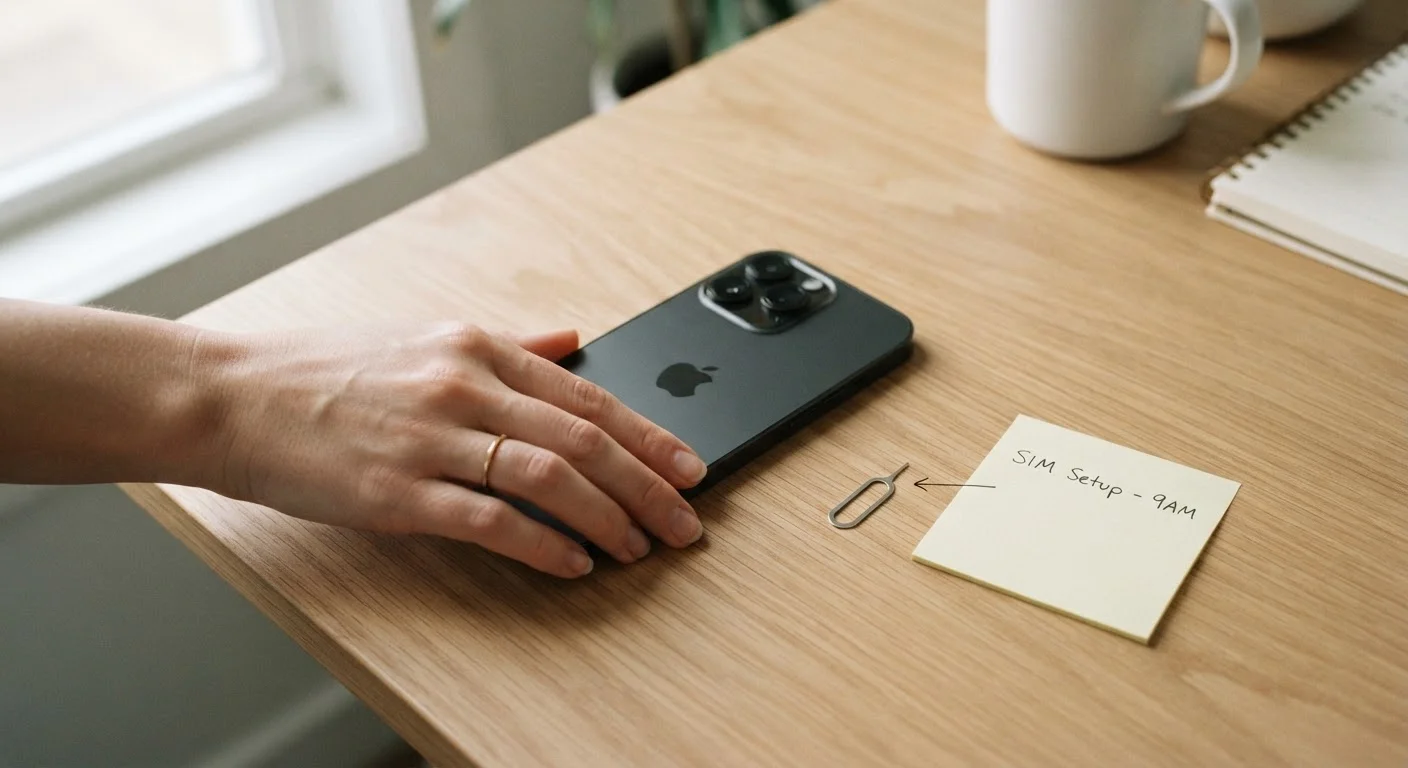
SIM card ejector tool (or small paperclip)
Opens the SIM card tray so you can remove your SIM before the handoff.
Computer or external drive
Provides a local backup destination for photos, videos, and documents before you wipe the device.
Cloud storage account (Google Photos, iCloud, etc.)
Backs up media and contacts wirelessly so nothing is lost during the factory reset.
Notepad or password manager
Lets you record any account credentials or Wi-Fi passwords you'll need on your next device before signing out.
Critical Steps People Frequently Miss
Disable Activation Lock Before You Reset
On iPhones and iPads, Activation Lock ties the device to your Apple ID. If you factory reset without signing out of iCloud first, the next owner will be prompted to enter your Apple ID credentials and won't be able to use the phone. On Android, a similar Google account lock applies. Always sign out through Settings — not just through the app — before you wipe.
Two steps consistently trip people up: disabling Activation Lock before resetting, and signing out of payment apps individually. A factory reset does not automatically remove an Apple Activation Lock (tied to Apple ID) or a Google lock on Android devices. If you wipe the phone without clearing these first, the next person will face a locked device they can't activate — and you may need to help them remotely, or the trade-in may be rejected entirely.
Payment apps like Venmo, Cash App, PayPal, and digital wallets deserve their own attention. Signing out of your primary Google or Apple account does not automatically sign you out of every third-party app. Open each one manually and sign out or deregister the device before you reset.
Payment Apps Don't Auto-Sign Out
Removing your primary Google or Apple account does not automatically sign you out of banking and payment apps. These apps maintain their own independent login sessions. If you skip this step, someone using the device during setup could potentially access your financial accounts before the reset clears them.
After the Reset: Final Verification
Once the device has been wiped, it should boot to the standard out-of-box setup screen — the same screen you saw when the phone was brand new. Walk through the first few prompts to confirm no accounts are pre-filled and no personal data appears. If your name, email, or any app data shows up during setup, the reset did not complete correctly and you should repeat it.
If you're passing the device on to a child or family member, you may want to review parental controls and screen time settings before handing it over — our tablet handoff checklist for children covers that process specifically. Once you've confirmed the phone is clean and boots correctly, you're ready to hand it off with confidence.