

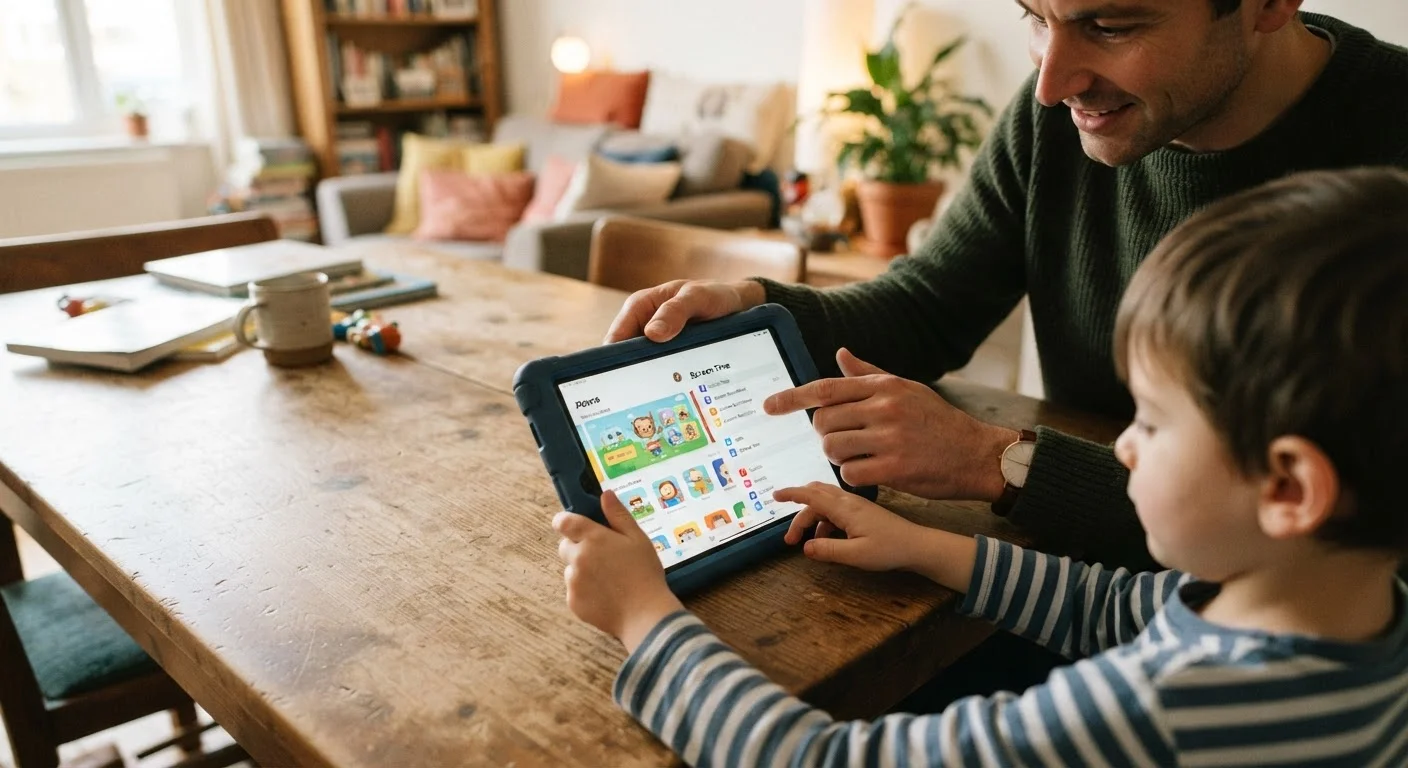
Key Takeaways
- Every major tablet platform includes free built-in parental controls that require no extra apps.
- Screen time limits, content filters, and app restrictions can be configured in under 30 minutes.
- A separate parental passcode prevents children from overriding the restrictions you set.
- Content age ratings only work correctly when linked to the right app store account and region.
- Revisiting settings every few months keeps controls aligned with a child's changing needs.
What you will need
Why Built-In Controls Are Worth Using First
Third-party parental control apps are widely marketed, but the tools built directly into modern tablets are more capable than many parents realize — and they're free. Apple, Google, and Amazon have each invested significantly in their native control systems, partly in response to growing concern from parents and researchers about children's screen time and content exposure.
Before investing in additional software, it's worth understanding what's already available. If you're still deciding which device to hand to a child, our article on choosing between a tablet and laptop covers how each type fits different household uses.
What you will need
Apple Screen Time (iPads)
Built-in iOS/iPadOS feature for setting app limits, content restrictions, and downtime schedules.
Google Family Link (Android tablets)
Google's free parental control layer for approving app downloads, setting screen time, and filtering content on Android devices.
Amazon Parent Dashboard (Fire tablets)
Amazon's control center for managing content access, daily goals, and screen time on Fire tablets.
A secondary email address
Useful for creating a child's supervised account without mixing it with your personal account.
Step-by-Step: Configuring Parental Controls
The following steps apply broadly across the three most common tablet platforms. Screenshots and exact menu names vary by software version, but the underlying options described here are available on current releases of iPadOS, Android, and Amazon's Fire OS. If a specific menu item isn't where you expect it, use the device's built-in Settings search function to locate it quickly.
Choose and access the right parental control system for your tablet
Each tablet platform uses a different system. On an iPad, go to Settings → Screen Time. On an Android tablet running Google's software, download Google Family Link on your own phone and follow the guided setup to link the child's device. On an Amazon Fire tablet, open Settings → Parental Controls or set up an Amazon Kids profile from the home screen.
If the device already has a Google or Apple account signed in under your name, you'll need to decide whether to create a separate supervised child account — generally the cleaner long-term approach.
Set a parental passcode that your child cannot guess
This step is critical. On an iPad, Screen Time will prompt you to create a separate four-to-six digit passcode distinct from the device unlock code. On Android via Family Link, your own Google account password serves as the authorization layer. On Fire tablets, you create a dedicated parental controls password during setup.
Avoid using birthdays, repeating digits, or any code your child has seen you enter. Store it somewhere secure — losing this passcode can require a full device reset to recover.
Enable content filters and age-based restrictions
On an iPad: Navigate to Screen Time → Content & Privacy Restrictions → Content Restrictions. Set age ratings for apps, movies, TV shows, music, and books. You can also restrict explicit web content under Web Content → Limit Adult Websites.
On Android via Family Link: Open the Family Link app on your phone, select your child's account, then tap Controls → Content restrictions to set Google Play age ratings and filter SafeSearch on.
On Fire tablets: Inside an Amazon Kids profile, content is automatically filtered by the age range you specify. In standard Parental Controls, use Amazon Content and Apps to toggle categories on or off.
Restrict app downloads and in-app purchases
Children can rack up charges or install inappropriate apps if purchase controls are off. On an iPad: Go to Screen Time → Content & Privacy Restrictions → iTunes & App Store Purchases and set Installing Apps and In-app Purchases to Don't Allow. On Android: Family Link requires parental approval for every app download by default — confirm this is active. On Fire tablets: Under Parental Controls, toggle Password Protect Purchases to on.
Set daily screen time limits and a downtime schedule
On an iPad: Use Screen Time → App Limits to cap time on specific app categories (e.g., Games, Entertainment) and Downtime to block all non-essential apps during set hours — such as bedtime or school time. On Android via Family Link: Use Controls → Daily limit to set a total daily usage cap and Bedtime to lock the device at a set hour. On Fire tablets: Amazon Kids profiles let you set daily goals, screen time totals, and automatic bedtime curfews from the Parent Dashboard.
Review and adjust settings regularly
Parental controls are not a one-time task. App stores continuously add new apps, children's interests change, and age-appropriate content shifts as kids grow. Set a reminder to review all settings every two to three months. On iPads, Screen Time's weekly reports show which apps were used most — a useful starting point for conversations about habits.
See our pre-setup checklist for a complete rundown of things to verify before the device changes hands.
No Filter Is Completely Foolproof
Built-in content filters significantly reduce exposure to inappropriate material, but no technical control blocks everything. New apps, websites, and content formats appear constantly. Parental controls work best as one layer of a broader approach that includes open conversations with children about online safety, boundaries, and what to do if they encounter something upsetting.
After Setup: Staying Ahead of the Gaps
Parental controls handle the technical layer, but device security and privacy extend further. The habits covered in our guide on keeping mobile devices secure apply equally to tablets used by children — especially around software updates, which often patch vulnerabilities that could be exploited by malicious apps or websites.
It's also worth understanding that tablets collect data even when content filters are on. Our overview of how mobile devices collect data explains what those settings actually do and how to make informed choices for a child's account.
One Device Setup Does Not Cover All Devices
Settings configured on a tablet apply only to that specific device. If your child also uses a smartphone, gaming console, or school-issued device, each platform requires its own setup. Check each device separately and verify that a child's account credentials don't grant automatic access to unmanaged devices in your home.