

Key Takeaways
- Photos and videos are typically the single largest drain on phone storage for most users.
- App cache — temporary data apps store locally — can silently accumulate gigabytes over time.
- Many phones offer built-in storage analysis tools that pinpoint what's using the most space.
- Offloading media to cloud services frees local space without permanently deleting your files.
- Unused apps and downloaded files are common hidden culprits that are easy to remove.
Why Your Storage Fills Up Faster Than You'd Expect
Modern smartphones do a lot more than make calls, and all of that activity leaves a footprint. Every photo snapped in high resolution, every app installed, and every video streamed offline chips away at your available storage — often without any visible warning until you're suddenly blocked from taking a new picture.
The frustrating part is that storage problems rarely have one cause. They're the result of several small habits layered on top of each other over months. Understanding which categories are the biggest offenders is the first step toward reclaiming space without accidentally deleting something you care about.
If your phone is also feeling slow alongside running out of space, those two issues often travel together — see why your phone slows down over time for more on what's happening under the hood.
40%+
Of phone storage often used by media files
Industry analyses of consumer device usage consistently find that photos, videos, and downloaded media account for the largest share of used storage on most smartphones.
1–5 GB
Typical cache buildup in heavy-use apps
Social media and streaming apps that handle large volumes of media can accumulate several gigabytes of cached data within a few months of regular use.
The Mistakes That Quietly Fill Your Phone
Most storage problems trace back to a handful of repeated habits. The mistakes below aren't obvious in the moment — that's exactly why they're so common. Working through each one gives you a clear action plan rather than a vague sense that you should "delete some stuff."
Ignoring the photo library as the primary storage culprit.
Why it happens: Photos and videos accumulate silently in the background — most people don't realize a single minute of 4K video can exceed 400 MB.
Leaving app cache to grow unchecked for months or years.
Why it happens: Cache — temporary data apps store to load faster — is invisible to most users and grows silently without any notification.
Keeping apps installed that haven't been opened in months.
Why it happens: Apps are easy to download and easy to forget, and many users assume an unopened app isn't using any space.
Forgetting about downloaded files in apps like email, messaging, and browsers.
Why it happens: Every attachment opened in email, every video saved from a chat, and every file downloaded from a browser lands somewhere — and most users never think to clean those folders.
Streaming music and podcasts offline without managing download libraries.
Why it happens: Downloading playlists and podcast episodes for offline use is convenient, but those files stay on the device indefinitely unless manually removed.
Don't Delete Before You Back Up
Before clearing photos, app data, or downloaded files, confirm they are safely backed up to a cloud service or computer. Deleting local copies without a backup means those files are gone permanently. Most cloud photo services offer automatic backup — check that it has completed before removing anything from your device.
How to Find What's Using Your Space Right Now
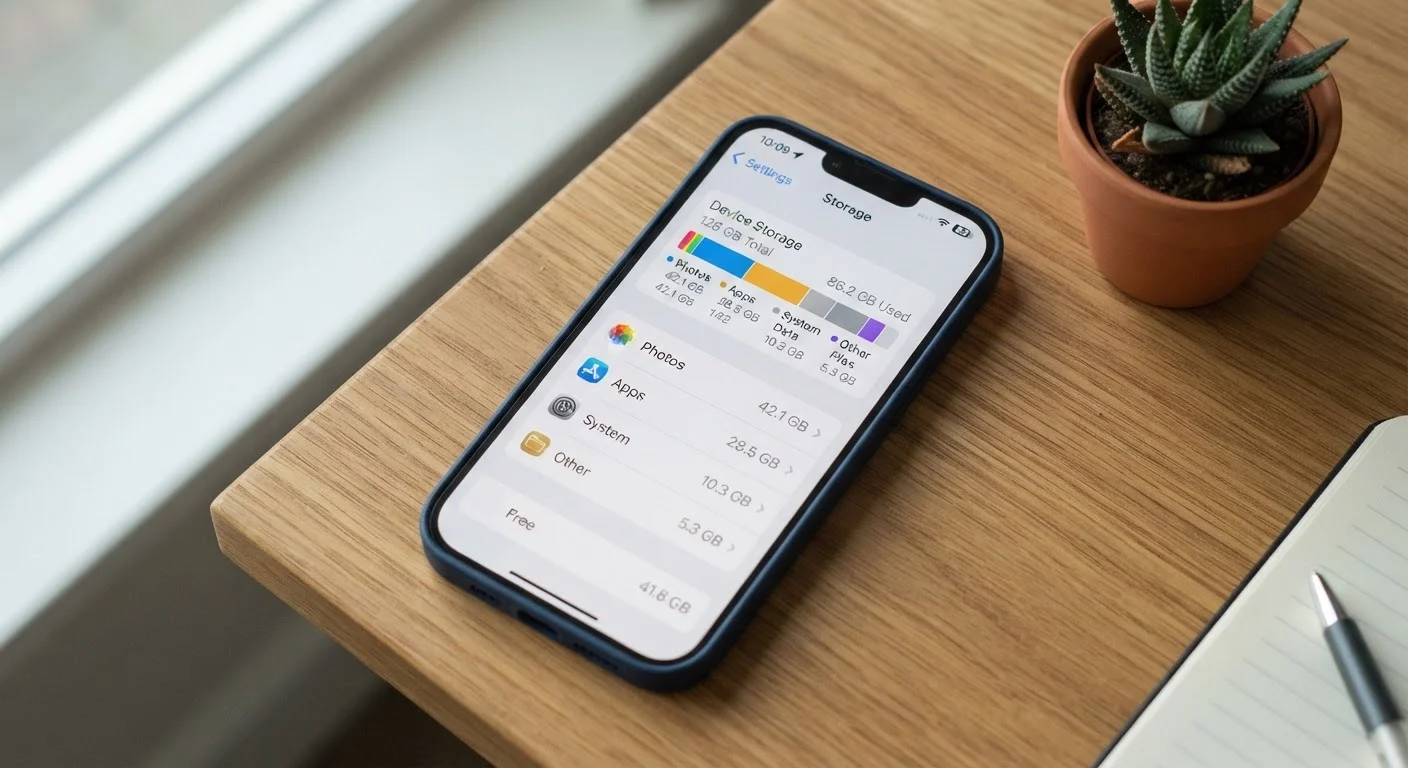
Both major mobile operating systems include a built-in storage breakdown that shows exactly how much space each category and individual app is consuming. On most Android devices, go to Settings → Storage. On iPhone, find it under Settings → General → iPhone Storage. Both views display a color-coded breakdown and list apps sorted by size.
Start with the largest categories first — typically photos, apps, and system data. Resist the urge to guess; let the numbers guide you. A 200 MB app you use daily is worth keeping; a 1.5 GB app you forgot existed is worth removing.
Clearing App Data Resets Your Settings
Clearing an app's full data — as opposed to just its cache — can log you out of accounts and erase saved preferences or in-app downloads. Cache clearing is generally safe and recoverable; full data clearing is more drastic. Know the difference before tapping confirm in your phone's storage settings.
If you're planning to move to a new device soon, understanding your storage breakdown now also makes the transfer smoother. Our guide on getting a new phone without losing a single photo or contact walks through how to carry everything important across safely.