

| Where to find privacy settings (iOS) | Settings > Privacy & Security |
| Where to find app permissions (Android) | Settings > Privacy > Permission Manager |
| Location permission tiers available | Always, While Using the App, Never |
| Can you revoke permissions after granting them? | Yes — at any time from your settings menu |
| Does turning off ad tracking stop all ads? | No — ads continue; they become less targeted |
| Platforms requiring explicit tracking consent | iOS (since iOS 14.5 via App Tracking Transparency framework) |
Why Privacy Settings Are Worth Your Attention
Every app on your phone is capable of requesting access to your camera, microphone, contacts, location, and more. Most users tap "Allow" without a second thought — and that's understandable. The prompts are designed to be fast and frictionless.
But those permissions have real consequences. An app with constant access to your precise location can build a detailed picture of your daily movements. An app with access to your contacts can upload that list to a remote server. None of this is hidden — it's disclosed in terms most people never read.
The good news: both Android and iOS give you meaningful control over these settings. You don't need to understand every technical detail to make smarter choices. You just need to know what each setting does and when it matters. For a deeper look at how data collection works under the hood, see how your phone collects data and what you can control.
| Where to find privacy settings (iOS) | Settings > Privacy & Security |
| Where to find app permissions (Android) | Settings > Privacy > Permission Manager |
| Location permission tiers available | Always, While Using the App, Never |
| Can you revoke permissions after granting them? | Yes — at any time from your settings menu |
| Does turning off ad tracking stop all ads? | No — ads continue; they become less targeted |
| Platforms requiring explicit tracking consent | iOS (since iOS 14.5 via App Tracking Transparency framework) |
The Core Privacy Settings, Defined
Here are the most important categories you'll find in your phone's privacy or app-permissions menu — and what granting or denying each one actually means.
Location Access
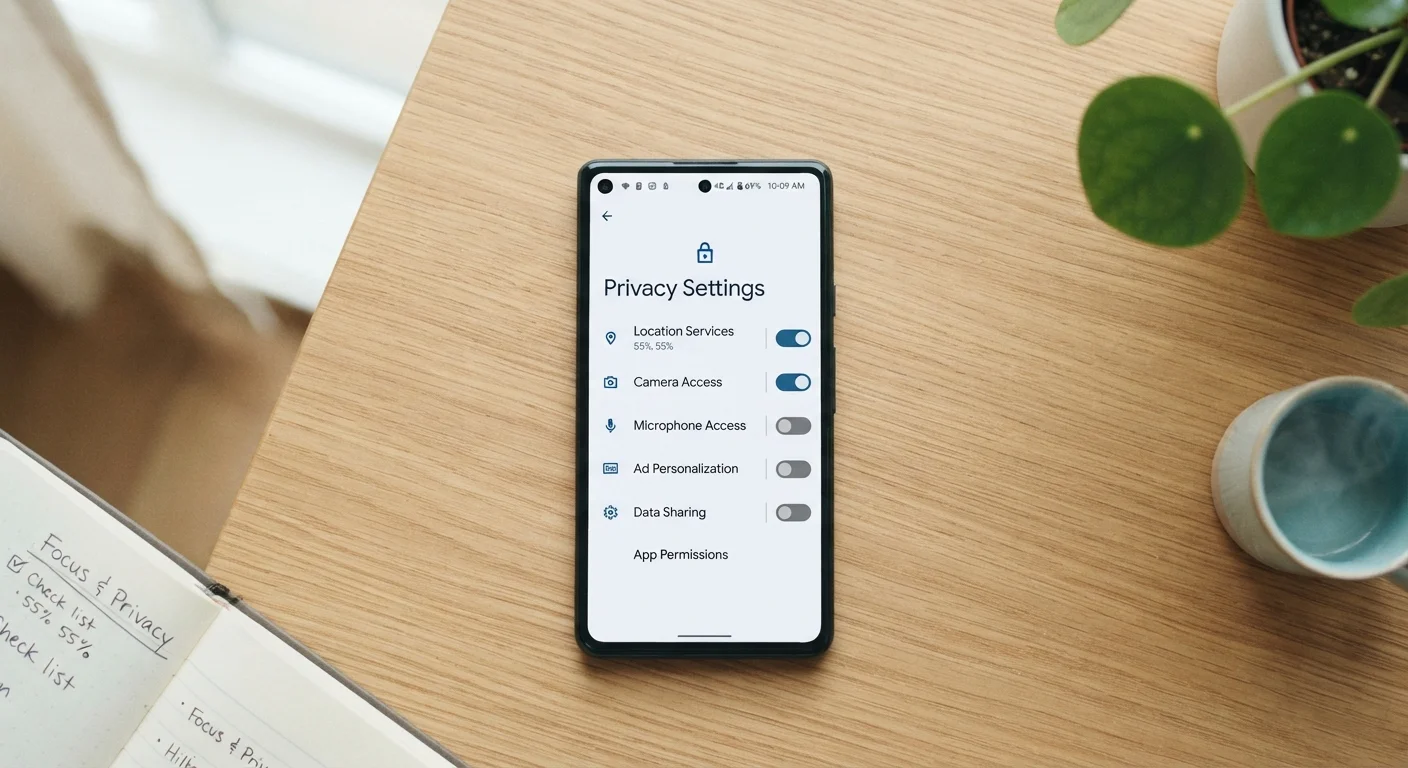
This controls whether an app can see where you are geographically. Most platforms offer three tiers: Always (24/7, even when the app is closed), While Using the App (only when you have the app open), and Never. A navigation app genuinely needs location while in use. A flashlight app does not need it at all. When in doubt, choose "While Using" rather than "Always."
Camera and Microphone
Apps that request camera access can take photos or video; apps with microphone access can record audio. These should be granted only to apps where the function is obvious — a video-calling app, a voice recorder. Revoke access for any app where the use case isn't clear.
Contacts
Granting contacts access allows an app to read the names, numbers, and email addresses of everyone in your address book — not just yours. Be selective. A messaging app may legitimately need this; a game almost certainly does not.
Tracking (iOS) / Ad ID (Android)
On iOS, apps must ask permission before tracking your activity across other companies' apps and websites. On Android, you can reset or delete your Advertising ID, a unique code advertisers use to serve you targeted ads. Limiting tracking doesn't stop ads — it makes them less personalized. See how Android and iOS differ on privacy controls for more context.
Background App Refresh
This allows apps to update their content even when you're not using them. It's more of a battery and data setting than a privacy one, but apps refreshing in the background can also be sending usage data. Disabling it for apps you rarely use is a reasonable step.
App Permission
An explicit grant that allows an app to access a specific device feature or data type — such as your camera, location, or contacts. You can grant or revoke these at any time.
Advertising ID
A resettable, unique identifier assigned to your device by the operating system. Advertisers use it to link your activity across multiple apps and serve targeted ads.
App Tracking Transparency (ATT)
An iOS framework that requires apps to ask your permission before tracking your activity across other companies' apps and websites. Introduced in iOS 14.5.
Background App Refresh
A feature that allows apps to fetch new content or send data even when the app is not open on your screen. Can be disabled per app or globally.
Precise vs. Approximate Location
Most smartphones let you share either your exact GPS coordinates (precise) or a general area within a few miles (approximate). Approximate location is sufficient for most apps that don't need navigation.
Practical Steps You Can Take Right Now
You don't need to audit every setting at once. A focused 10-minute review covers most of the risk.
- Open your Privacy or Permissions settings and look at which apps have location set to "Always." Change any non-essential ones to "While Using" or "Never."
- Review camera and microphone access. If an app has it and you can't explain why, revoke it.
- Check for tracking permission (iOS) under Settings > Privacy & Security > Tracking. Most users benefit from turning off "Allow Apps to Request to Track."
- On Android, reset your Advertising ID under Settings > Privacy > Ads. Some versions allow you to delete it entirely.
- Look at your notification permissions while you're in Settings. Apps that send frequent notifications often do so to drive engagement — and engagement data feeds back into advertising profiles.
Privacy settings work best as part of broader phone security habits. For complementary steps, see practical habits that meaningfully protect your phone and data. If you use smart home devices as well, the same principles apply — common smart home privacy misconceptions are worth reviewing too.
Settings Vary by Device and OS Version
The exact menu names and paths described here reflect general patterns across current iOS and Android versions, but the specific wording and location of controls can differ by manufacturer or software version. If a setting isn't where you expect it, use your device's built-in search bar and type "privacy" or "permissions" to locate it quickly. Checking your device maker's support documentation is always a reliable fallback.