

Key Takeaways
- Pairing requires a companion app on your smartphone — download it before powering on the watch.
- Configure display, wrist orientation, and time format before anything else.
- Limit notifications to a handful of apps to keep your wrist from becoming a distraction.
- Health tracking features need permissions enabled in the companion app to function correctly.
- Charge the watch fully before first use and learn the battery rhythm within the first few days.
Start here
What a Smartwatch Actually Does Day-to-Day
Next
Pairing Your Smartwatch to Your Phone
Then
Essential Settings to Configure First
Refine it
Customizing Notifications So They Actually Help
Go deeper
Health and Activity Tracking: What to Turn On
Before you finish
Common First-Week Mistakes to Avoid
What a Smartwatch Actually Does Day-to-Day
A smartwatch is a small computer worn on your wrist that connects to your smartphone. In practice, that means three things: it surfaces information at a glance (so you're not pulling your phone out constantly), it tracks basic health data like heart rate and steps, and it lets you interact — dismissing a call, replying to a text, or skipping a song — without touching your phone.
The features you actually use every day tend to be the simplest ones: checking the time, reading incoming message previews, seeing calendar reminders, and glancing at your step count. The more advanced capabilities — built-in GPS, contactless payments, ECG readings — vary by model and are used situationally rather than constantly.
If you haven't bought a smartwatch yet, our guide on evaluating a wearable before you commit covers what to look for in terms of compatibility and sensors.
Bluetooth
A short-range wireless technology that lets two devices — like your watch and phone — exchange data without a cable, typically within about 30 feet of each other.
Companion app
The smartphone application made by your watch's manufacturer that acts as the main hub for setup, settings, health data, and firmware updates.
Firmware
The built-in software that controls your smartwatch's hardware. Manufacturers release firmware updates to fix bugs, add features, and improve performance.
Accelerometer
A motion sensor inside the watch that detects movement direction and intensity — the primary tool used to count steps and detect gestures like raising your wrist.
Always-on display
A mode where the watch screen stays dimly lit at all times so you can read the time without raising your wrist. It provides convenience at the cost of faster battery drain.
Wrist detection
A feature that uses sensors to tell whether the watch is being worn. When the watch is removed, some security and health-tracking features automatically pause or lock.
Pairing Your Smartwatch to Your Phone
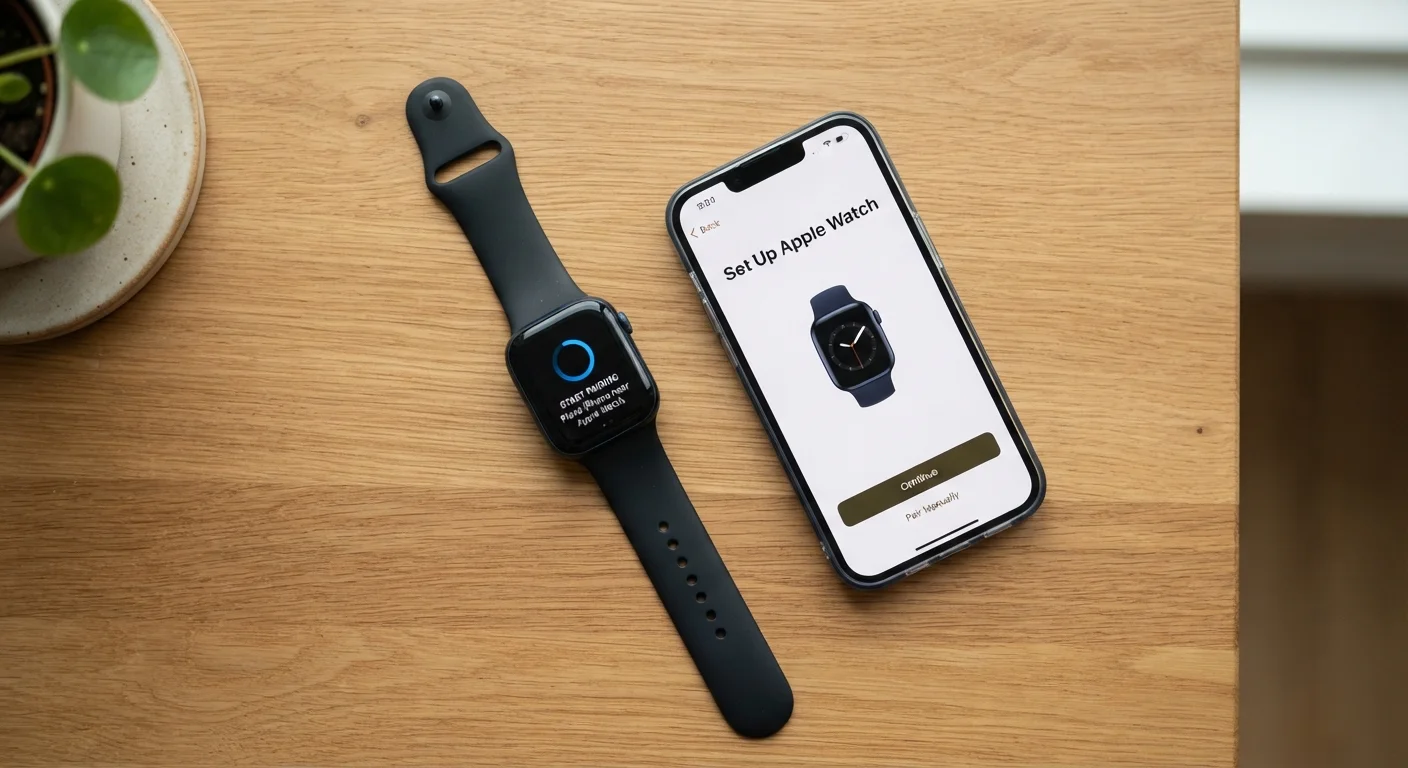
Pairing is the process of creating a secure Bluetooth connection between your watch and phone so the two can share data. Before you power on the watch, download the manufacturer's companion app from your phone's app store. This app is the control center for everything — notifications, health data, firmware updates, and watch face customization.
- Charge the watch to 100% before starting. Setup can drain the battery quickly.
- Open the companion app and follow its on-screen pairing wizard — it will prompt you to enable Bluetooth if it isn't already on.
- Hold the watch near your phone when prompted. The app will detect the watch and display a confirmation code on both screens; confirm they match.
- Sign in to your account if required. Many smartwatch platforms tie features to a cloud account for data backup and cross-device sync.
- Grant permissions when asked — contacts, notifications, location, and health data access are each requested separately. Granting these upfront prevents features from silently not working later.
For a more detailed walkthrough of syncing quirks across Android and iOS, see our article on pairing a wearable with your smartphone.
Keep Your Phone Nearby During Pairing
Bluetooth range shrinks indoors due to walls and interference. Keep your phone in the same room — ideally within a few feet — while completing the pairing process. Once fully paired, the connection range improves, but proximity helps prevent dropouts during the initial handshake.
Essential Settings to Configure First
Once paired, resist the urge to dive into watch faces and apps. A few foundational settings make everything else work better:
- Wrist preference: Tell the watch which wrist you wear it on (dominant or non-dominant). This affects how the accelerometer — the sensor that detects motion — interprets your movements, which matters for step counting and gesture controls.
- Time format and units: Set 12-hour or 24-hour time, and choose miles or kilometers for distance. These defaults flow into workout summaries and health data.
- Screen brightness and always-on display: Always-on display is convenient but significantly reduces battery life. Start with it off and turn it on later if you miss it.
- Auto-lock and passcode: If your watch supports contactless payments, a passcode or wrist-detection lock is typically required by the payment network. Enable it now rather than when you're standing at a register.
Customizing Notifications So They Actually Help
By default, many smartwatches mirror every notification your phone receives — every email, social media alert, and app ping. This is the fastest way to find a smartwatch annoying rather than useful.
In the companion app, look for a Notifications section where you can toggle individual apps on or off. A practical starting point: enable only messaging apps (texts, direct messages), calendar reminders, and phone calls. Give that a week, then add anything you actually missed.
Notification Settings Live in Two Places
Your watch's companion app controls which apps can send notifications to your wrist, but your phone's system settings control whether those apps can send notifications at all. If an app's notifications aren't reaching your watch, check your phone's notification permissions first — the companion app setting only matters if the phone-level permission is already granted.
Also check whether your watch has a Do Not Disturb or Theater Mode option. Scheduling Do Not Disturb during sleep hours or meetings prevents your wrist from buzzing at inconvenient times without requiring you to fiddle with settings manually.
Health and Activity Tracking: What to Turn On
Smartwatch health features generally fall into two categories: passive tracking (always running in the background) and on-demand measurements (started manually or by schedule).
Passive tracking typically includes step counting, heart rate monitoring, sleep tracking if worn overnight, and — on some models — blood oxygen spot checks. These start automatically once permissions are granted, but verify in the companion app's health section that each is enabled.
On-demand workouts need to be started from the watch or app before exercise begins. Starting a workout session improves data accuracy because the watch increases its sensor sampling rate during the session.
A note on health data: smartwatch sensors provide general wellness indicators, not medical-grade diagnostics. If a reading concerns you — an unusually high or low heart rate, for example — consult a qualified healthcare professional rather than drawing conclusions from the watch alone.
The health information provided by smartwatches is for general wellness awareness only and is not a substitute for professional medical advice or diagnosis.
Common First-Week Mistakes to Avoid
Most smartwatch frustrations in the first week come from a handful of predictable missteps:
- Ignoring the firmware update: After pairing, the companion app will almost always prompt you to install a software update. Do it before exploring features — updates frequently fix pairing bugs and improve sensor accuracy.
- Wearing the watch too loosely: Heart rate and blood oxygen sensors need consistent skin contact. The watch should sit snugly enough that it doesn't slide when you move your arm, but not so tight it's uncomfortable.
- Skipping the battery rhythm: Smartwatch battery life varies enormously by model and usage. Track when the watch hits 20% for your first few days to understand your real-world battery window and build a charging habit around it.
- Overloading apps: Installing many third-party watch apps immediately clutters the interface and can slow performance. Start with what came pre-installed and add selectively.
Setting up a smartwatch shares some DNA with setting up any new device. If you're also new to the smartphone it pairs with, our first-timer's smartphone orientation covers the foundations that carry over.